Smartphone privacy and security have become increasingly important in today’s digital world. Our mobile phones contain personal photographs, private messages, banking applications, social media accounts, and other sensitive information. Protecting this information with a reliable screen lock is essential.
If you want to try a different way to secure your Android smartphone, the Lock Screen – Time Password App offers an interesting option. Instead of relying only on a fixed PIN, the app can use your phone’s current time as a dynamic password that changes every minute.
This makes it an interesting option for users searching for a time password lock screen, Android screen lock app, mobile security app, or privacy protection application.
In this article, we will explain what the Lock Screen – Time Password App is, how to use it, its key features, additional permissions, Xiaomi phone settings, advantages, disadvantages, and frequently asked questions.
Table of Contents
What is Lock Screen – Time Password App?
Lock Screen – Time Password is an Android application designed to provide an alternative lock screen experience using dynamic time-based passwords.
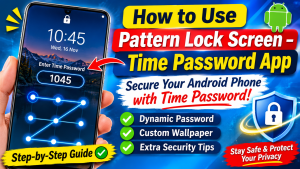
The main feature of this application is that it can turn your device’s current time into a password.
For example, if your phone displays the time as 10:45, the time-based password may be 1045. When the time changes to 10:46, the password changes accordingly.
This feature is designed to make the unlocking process different from traditional fixed PIN systems.
The app also provides additional customization options, including lock screen wallpapers, unlock sounds, vibration settings, and different password modes.
Depending on the app version, additional privacy features such as a photo and video vault or private browser may also be available.
Basic App Information
| Particulars | Details |
|---|---|
| App Name | Screen Lock – Time Password |
| Developer | Adria Devs |
| Platform | Android |
| App Category | Tools / Personalization |
| Main Feature | Dynamic Time Password |
| Lock Options | Time PIN and Custom PIN modes |
| Wallpaper | Customizable |
| Clock Format | 12-hour and 24-hour |
| Business Model | Free with advertisements and in-app purchases |
| Official Download Source | Google Play Store |
How Is It Useful?
The Lock Screen – Time Password App can be useful for people who want an alternative to a traditional fixed PIN.
Here are some ways it may help users.
1. Dynamic Password Protection
One of the main attractions is its changing password feature.
Instead of using the same PIN every time, users can select a time-based password mode. The password changes as the clock changes.
This can make casual PIN observation less useful to someone trying to guess your password later.
However, a time-based password should not automatically be considered stronger than a modern Android security lock.
2. Additional Privacy Features
Some versions of the application include a vault feature that allows users to store selected photos and videos separately.
This can provide an additional layer of privacy for personal media.
Always check how the vault stores and protects files before relying on it for important data.

3. Custom Lock Screen Wallpaper
Users can personalize the appearance of their lock screen by selecting an HD wallpaper or choosing an image from their device gallery.
This makes the lock screen more personal and visually appealing.
4. Easy Customization
The application provides options to customize the unlock sound, vibration, clock format, and other visual settings.
Users can select settings according to their preferences.
5. Alternative Screen Lock Experience
People who want something different from a standard PIN or password screen may find the dynamic time password feature interesting.
It offers an alternative way to interact with the phone’s lock screen.
How to Use the App
Using the Lock Screen – Time Password App is relatively straightforward. Follow these general steps to configure the application.
Step 1: Download the Application
Open the Google Play Store on your Android smartphone.
Search for:
Screen Lock – Time Password
Check the developer name and app listing carefully before installing it.
Step 2: Open the App
After installation, open the application.
You will see the main interface, where different lock screen options and customization settings may be available.
Read the app’s instructions before enabling its lock screen functionality.
Step 3: Select Your Preferred Lock Type
Choose the password method available in your app version.
Common options include:
| Lock Type | Description |
|---|---|
| Current Time | Uses the current time as the password |
| Custom PIN | Allows users to select a fixed PIN |
| PIN + Minute | Combines a selected PIN with the current minute |
| PIN + Current Time | Combines a selected PIN with the current time |
| PIN + Day | Combines a selected PIN with the day or date |
| PIN + Hour | Uses a selected PIN with the current hour |
Step 4: Customize the Lock Screen
After selecting your preferred lock type, explore the personalization settings.
You may be able to:

- Select a lock screen wallpaper.
- Choose a clock format.
- Enable or disable unlock sounds.
- Enable or disable vibration.
- Customize the text displayed on the screen.
- Preview the lock screen appearance.
Step 5: Check the Lock Screen
Before depending on the application, test its functionality carefully.
Make sure you understand the selected password method and know how to recover access if the application stops working.
Key Features
The Lock Screen – Time Password App offers several features related to mobile privacy and lock screen customization.
1. Dynamic Time Password
The application can use the current time as a changing password.
For example:
| Current Time | Example Password |
|---|---|
| 09:15 | 0915 |
| 10:30 | 1030 |
| 12:45 | 1245 |
| 06:20 | 0620 |
These are illustrative examples for the current-time password mode.
2. Multiple Password Options
The application provides different password combinations, allowing users to select an option that suits their preferences.
The available modes can include current time, custom PIN, and PIN combined with time or date information.
3. Custom Wallpaper
Users can select a wallpaper from the available designs or choose their own image from the phone gallery.
This feature helps create a personalized Android lock screen.
4. Unlock Sound and Vibration
The application offers sound and vibration customization.
Users can enable or disable these options depending on their preferences.
5. 12-Hour and 24-Hour Clock Support
The application supports both common clock formats.
Users can choose the format that matches their normal device settings.
6. Photo and Video Vault
Some versions include a vault feature for storing selected photographs and videos.
Users should understand the backup and recovery process before moving important files into the vault.
7. Private Browser
Certain versions also provide a private browsing feature.
A private browser may limit the storage of browsing history within that browser, but it does not guarantee complete anonymity or prevent websites and network providers from observing activity.

Extra Settings and Permissions
Some screen lock applications require additional Android permissions to display their lock screen and operate correctly.
Before granting any permission, understand why the application needs it.
The exact permissions can vary depending on the app version and Android operating system.
| Permission | Possible Purpose |
|---|---|
| Internet Access | Network connectivity and advertisements |
| Display Over Other Apps | Displaying the custom lock screen |
| Camera | Capturing or selecting wallpaper images |
| Photos and Media Access | Selecting custom wallpapers or media |
| Auto Start | Helping the application start after a device restart |
| Background Activity | Supporting lock screen functionality |
| Network State | Checking network connectivity |
Why Should You Check App Permissions?
Android permissions help applications access specific device features.
However, you should not automatically grant every permission requested by an application.
Follow these precautions:
- Check the purpose of each permission.
- Allow only permissions needed for the features you want to use.
- Review the developer’s privacy policy.
- Check the Google Play Data Safety section.
- Avoid installing modified or unofficial APK files.
- Keep your phone’s built-in screen lock enabled.
A screen lock application should not be treated as a replacement for Android’s built-in security system.
Tips for MI/Xiaomi Phone Users
Some Xiaomi and Redmi smartphones use additional battery management and background activity restrictions.
Because of these settings, third-party lock screen applications may not always operate consistently.
If the application is not working as expected, check the following settings.
1. Check App Permissions
Open your phone’s Settings and locate the application permission management section.
Review the permissions required by the application and allow only those that are necessary for its features.
2. Check Auto Start Settings
Some Xiaomi devices provide an Auto Start option.
If the application requires background startup functionality, check whether it is available in your device settings.
3. Review Battery Restrictions
Battery optimization can restrict background activities.
Check the app’s battery settings if its lock screen stops functioning unexpectedly.
4. Update the Application
Make sure you are using a compatible and updated version of the application.
Also keep your Xiaomi phone’s operating system updated.

Note: Xiaomi and Redmi settings can differ depending on the MIUI or HyperOS version. Menu names and available options may vary.
Pros and Cons
Before installing any third-party Android screen lock app, it is worth understanding its advantages and limitations.
Advantages
- Offers a dynamic time-based password option.
- Provides different password modes.
- Supports customizable lock screen wallpapers.
- Includes unlock sound and vibration settings.
- Supports 12-hour and 24-hour clock formats.
- Provides an alternative lock screen experience.
- Offers additional privacy-related features in supported versions.
Disadvantages
- Advertisements may appear in the free version.
- Some features may require additional permissions.
- Third-party lock screen compatibility can vary.
- Background restrictions may affect performance.
- A dynamic password does not guarantee complete phone security.
- Vault recovery and backup options should be checked carefully.
Our Opinion
The Lock Screen – Time Password App is an interesting option for Android users who want to experiment with a different lock screen experience.
Its main attraction is the dynamic password feature, which uses the current time to create a changing PIN. The customization options, including wallpapers, clock formats, sound, and vibration, also make the application more flexible.
However, users should understand that third-party lock screen applications are not a substitute for Android’s built-in PIN, password, fingerprint, or biometric security.
We recommend reviewing the application’s permissions, privacy policy, and recovery options before using its additional features.
Overall, it may be worth exploring if you want a customizable time password lock screen, but your phone’s built-in security should remain enabled.
| Description | Link |
| Download Time Password App | Click Here |
| Join Whatsapp Group | Click Here |
| Home Page | Visit Home Page |
FAQ Highlights
1. What is the Lock Screen – Time Password App?
It is an Android application that offers a dynamic time-based password option and customizable lock screen features.
2. How does the time password lock screen work?
The application can use the current time displayed on your phone as a password. For example, if the time is 10:45, the password may be 1045.
3. Is the Time Password App free?
The Google Play listing for the Adria Devs version indicates that it contains advertisements and in-app purchases. Some features may require payment.
4. Can I use my own photo as a lock screen wallpaper?
Yes. The application supports wallpaper customization, including selecting images from your phone gallery in supported versions.
5. Does the application support Xiaomi and Redmi phones?
The application is designed for Android devices, but compatibility may vary. Xiaomi and Redmi users may need to review background activity, battery, and permission settings.
6. Can I use a normal PIN instead of a time password?
Yes. The application listing includes a custom PIN option alongside dynamic password modes.
7. Does the app support 12-hour and 24-hour time formats?
Yes. The listed application supports both 12-hour and 24-hour clock formats.
8. Is the Time Password App completely secure?
No application should be considered completely secure. Review its permissions and privacy policy, and continue using Android’s built-in security features.
9. What should I do if the lock screen stops working?
Check the application’s permissions, compatibility, battery restrictions, and available updates. Use your device’s built-in security options to maintain access to your phone.
10. Can I uninstall the application after using its vault?
If you have stored files in the application’s vault, first check how to restore or export them. Do not uninstall the application or clear its data until you have confirmed that your important files are safely recovered.
11. Does the app work on every Android phone?
The application supports many Android devices, but performance and compatibility can vary according to the phone model and Android version.
12. Where can I download the Lock Screen – Time Password App?
You can find the application on the Google Play Store. Always verify the developer name and application details before downloading.